
Components & interactionsText roll hover button
A second line
A second label rolls into view as you approach the action.
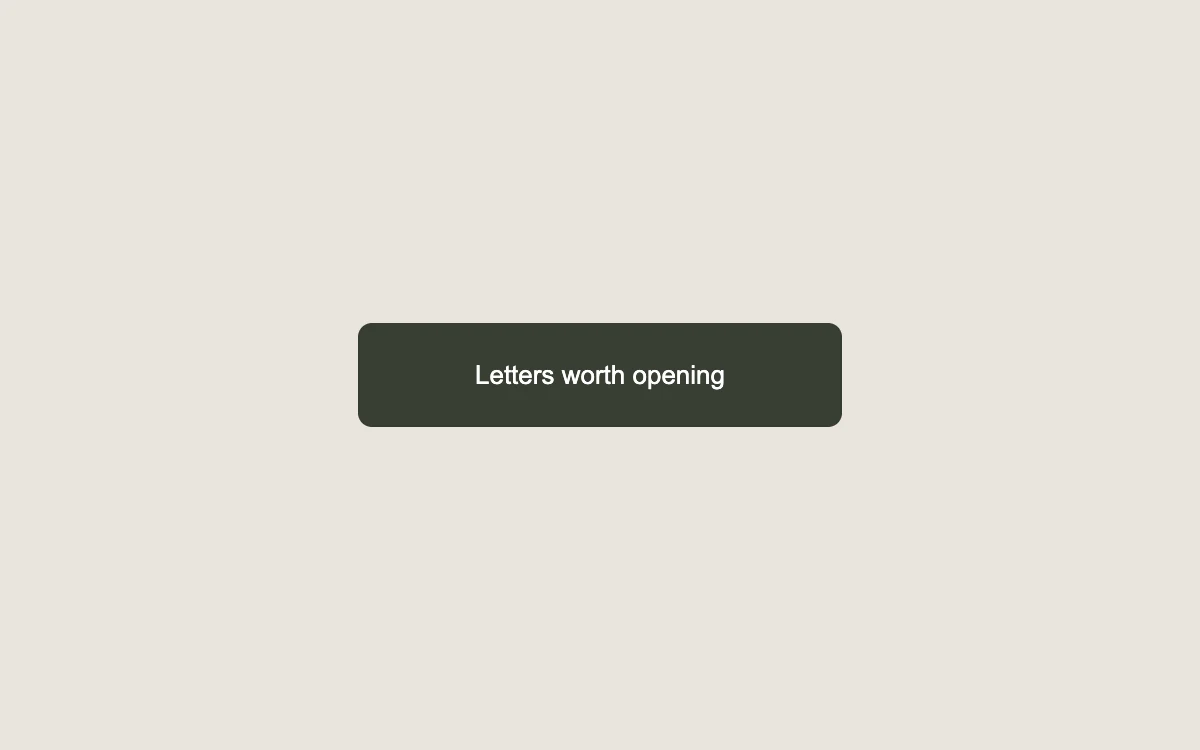
Hover, then join the reading list
Add to your project
Component source
Standalone React component. Styles are included.
React only. No additional packages.
Render the default export inside a container with a defined height. Its optional active prop stops movement when false. This example works with React 19; Next.js projects can use it as a client component.
View source code
/**
 * Adapted from https://github.com/kokonut-labs/kokonutui/blob/83eec6d982d400a18438001a8efdbac1f159dd43/components/kokonutui/slide-text-button.tsx
 * Retains the paired vertical text layers, clipped rollover and opacity handoff; removes the unrelated entrance animation.
 * Standalone styles and original demo content; reduced-motion and preview controls.
 *
 * MIT License
 *
 * Copyright (c) 2025 kokonutUI
 *
 * Permission is hereby granted, free of charge, to any person obtaining a copy
 * of this software and associated documentation files (the "Software"), to deal
 * in the Software without restriction, including without limitation the rights
 * to use, copy, modify, merge, publish, distribute, sublicense, and/or sell
 * copies of the Software, and to permit persons to whom the Software is
 * furnished to do so, subject to the following conditions:
 *
 * The above copyright notice and this permission notice shall be included in all
 * copies or substantial portions of the Software.
 *
 * THE SOFTWARE IS PROVIDED "AS IS", WITHOUT WARRANTY OF ANY KIND, EXPRESS OR
 * IMPLIED, INCLUDING BUT NOT LIMITED TO THE WARRANTIES OF MERCHANTABILITY,
 * FITNESS FOR A PARTICULAR PURPOSE AND NONINFRINGEMENT. IN NO EVENT SHALL THE
 * AUTHORS OR COPYRIGHT HOLDERS BE LIABLE FOR ANY CLAIM, DAMAGES OR OTHER
 * LIABILITY, WHETHER IN AN ACTION OF CONTRACT, TORT OR OTHERWISE, ARISING FROM,
 * OUT OF OR IN CONNECTION WITH THE SOFTWARE OR THE USE OR OTHER DEALINGS IN THE
 * SOFTWARE.
 */

"use client"

import { useState } from "react"

export default function SlideTextButtonExample({ active = true }: { active?: boolean }) {
  const [subscribed, setSubscribed] = useState(false)
  const text = subscribed ? "You're on the list" : "Letters worth opening"
  const hoverText = subscribed ? "Unsubscribe" : "Join the reading list"
  return (
    <div className="sf-slide-stage" data-active={active}>
      <div>
        <button
          type="button"
          className="sf-slide-button"
          aria-pressed={subscribed}
          aria-label={subscribed ? "Unsubscribe from reading list" : "Join the reading list"}
          onClick={() => setSubscribed((value) => !value)}
        >
          <span aria-hidden className="sf-slide-track">
            <span className="sf-slide-face">{text}</span>
            <span className="sf-slide-face sf-slide-next">{hoverText}</span>
          </span>
        </button>
      </div>
      <style>{`
      .sf-slide-stage { width:100%; height:100%; min-height:260px; box-sizing:border-box; display:grid; place-items:center; padding:24px; text-align:center; background:#e9e5dd; color:#46463c; font-family:inherit }
      .sf-slide-button { display:inline-flex; position:relative; height:52px; align-items:center; justify-content:center; overflow:hidden; padding:0 28px; min-width:242px; border:1px solid #373c31; border-radius:7px; background:#383e33; color:#fff; font:inherit; font-size:13px; font-weight:500; cursor:pointer; outline-offset:5px; touch-action:manipulation }
      .sf-slide-track { position:relative; display:inline-block; transition:transform 300ms cubic-bezier(.645,.045,.355,1) }
      .sf-slide-face { display:flex; justify-content:center; white-space:nowrap; opacity:1; transition:opacity 300ms }
      .sf-slide-next { position:absolute; top:100%; left:50%; transform:translateX(-50%); opacity:0 }
      @media (hover:hover) and (pointer:fine) { .sf-slide-stage[data-active="true"] .sf-slide-button:hover .sf-slide-track { transform:translateY(-100%) } .sf-slide-stage[data-active="true"] .sf-slide-button:hover .sf-slide-face:first-child { opacity:0 } .sf-slide-stage[data-active="true"] .sf-slide-button:hover .sf-slide-next { opacity:1 } }
      @media (prefers-reduced-motion:reduce) { .sf-slide-stage .sf-slide-button:hover .sf-slide-track { transform:none } .sf-slide-stage .sf-slide-button:hover .sf-slide-face:first-child { opacity:1 } .sf-slide-stage .sf-slide-button:hover .sf-slide-next { opacity:0 } }
    `}</style>
    </div>
  )
}
Where it works well
Pair a short expressive call to action with a concrete label on an occasional marketing action.
Reduced motion
The first label stays in place; the button still updates its subscribed state.
Things to know
Hover text is a fine-pointer enhancement. The accessible action label remains clear on touch and keyboard.